

 About Us
Overview
Individual Subscriptions vs Azure Management Groups
How It Works
Onboarding runs in four stages:- Grant read access to one service principal at the tenant root Management Group.
- Discover — Prowler walks the Management Group hierarchy and returns every Management Group and subscription under the tenant root.
- Select and connect — choose the subscriptions to monitor. Prowler creates one provider per subscription and tests every connection.
- Launch scans — apply a scan schedule across the connected subscriptions.
Nothing is deployed into your tenant. Unlike AWS Organizations onboarding, Azure onboarding creates no resources in Azure. Prowler reuses the service principal credential you provide as the credential of every subscription it onboards, so one credential covers discovery and scanning once all the required permissions are granted.
Onboarding always covers the whole tenant. Prowler scopes the organization to the tenant root Management Group, which it derives from the Microsoft Entra tenant ID. The wizard therefore asks for the tenant, never for a Management Group — there is no partial onboarding from a Management Group further down the hierarchy.
Before You Start
Create a Service Principal
Prowler Cloud authenticates against Azure with a service principal application. To create one, follow Creating a Prowler Service Principal Application. Keep the client ID and the client secret — the wizard asks for both.Grant Read Access at the Tenant Root Management Group
Discovery reads the Management Group hierarchy and the subscriptions inside it. Assign the built-in Reader role to the service principal on the tenant root Management Group, so the grant covers every Management Group and subscription beneath it:The tenant root Management Group is named after the tenant ID, so its resource identifier is always
/providers/Microsoft.Management/managementGroups/<tenant-id>. Creating a role assignment there requires Owner or User Access Administrator at that scope; a Global Administrator who holds neither can grant themselves access through the elevated-access toggle in Microsoft Entra ID.Grant the Scanning Permissions
Scanning each subscription additionally needs the permissions described in Azure Authentication in Prowler:
Role assignments made at the tenant root Management Group are inherited by every subscription beneath it, so assigning Reader and ProwlerRole there means every subscription you onboard is scannable without a per-subscription grant. To create the custom role, see Assigning “ProwlerRole” Permissions at the Subscription Level — and set its
assignableScopes to the Management Group, /providers/Microsoft.Management/managementGroups/<tenant-id>, rather than to a single subscription, so it can be assigned once for the whole tenant.
Find Your Microsoft Entra Tenant ID
Prowler identifies the organization by the Microsoft Entra tenant ID, a Universally Unique Identifier (UUID):Step 1: Start the Organization Wizard
Open the Wizard
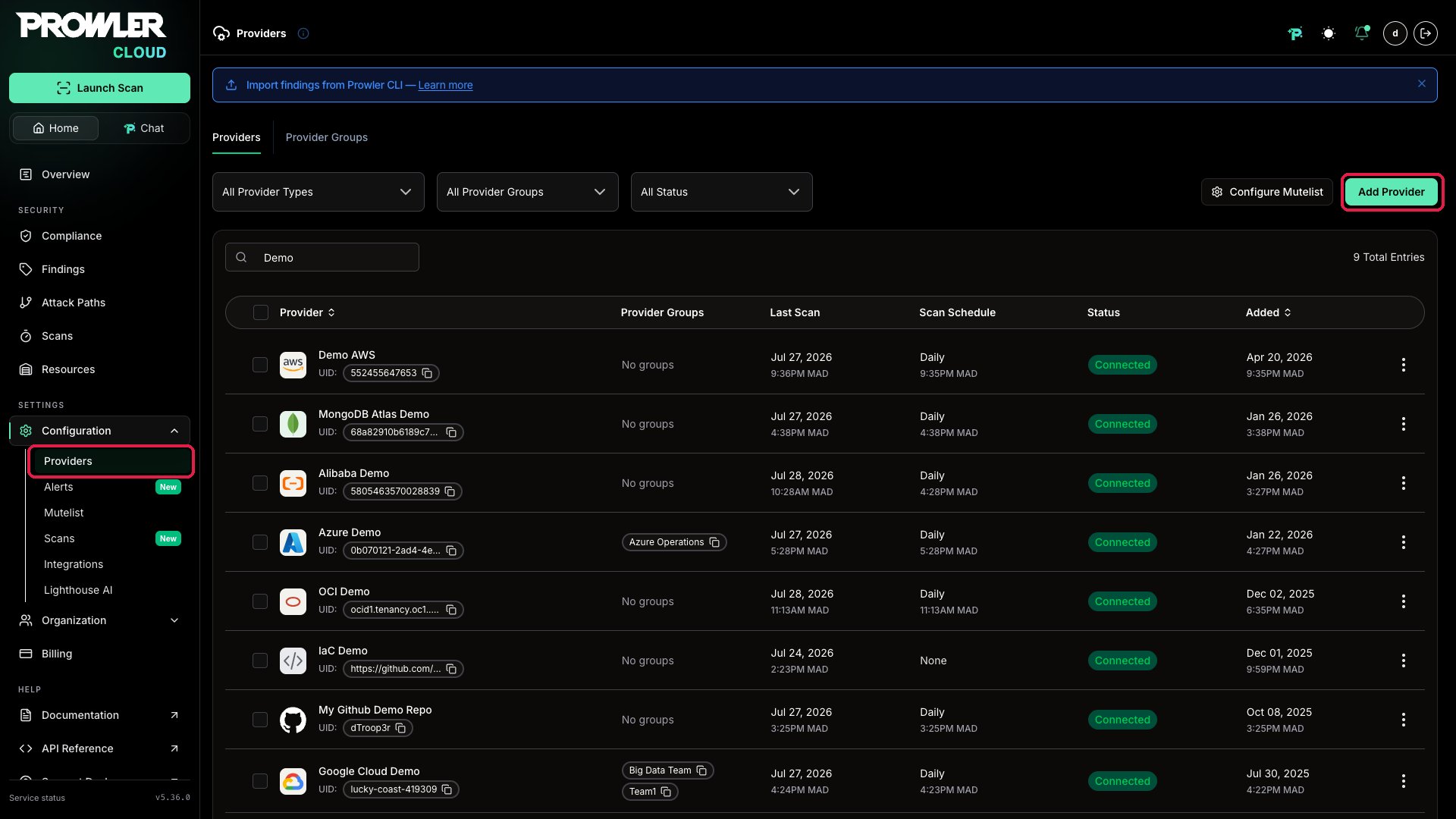
- Navigate to Providers and click Add Provider.
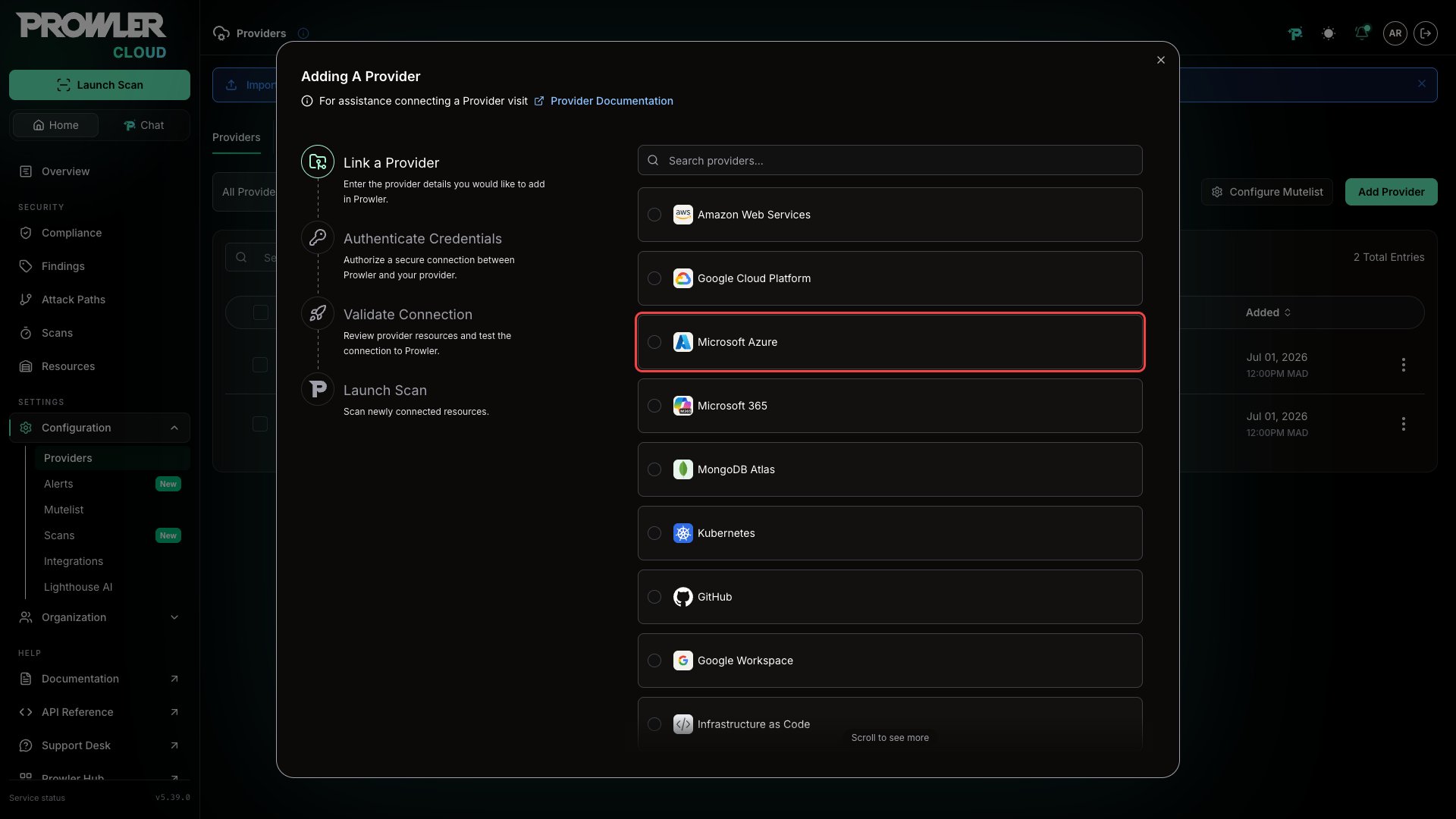
- Select Microsoft Azure as the provider.
- Choose Add Multiple Subscriptions With Azure Management Group.
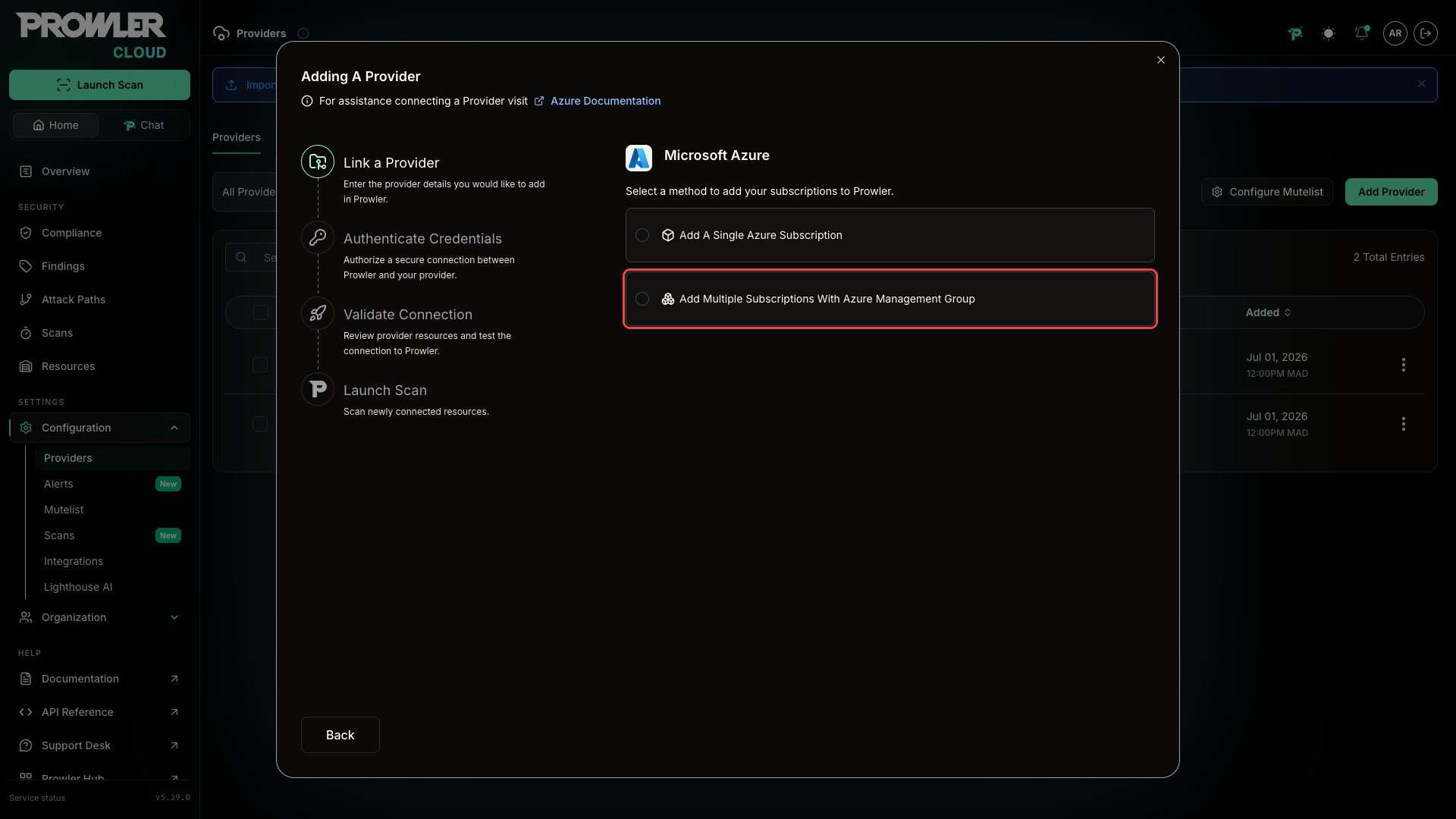
In Prowler Local Server the Management Group option is marked Cloud and opens an upgrade panel instead of the wizard. Management Group onboarding is a Prowler Cloud feature; the single-subscription method remains available.
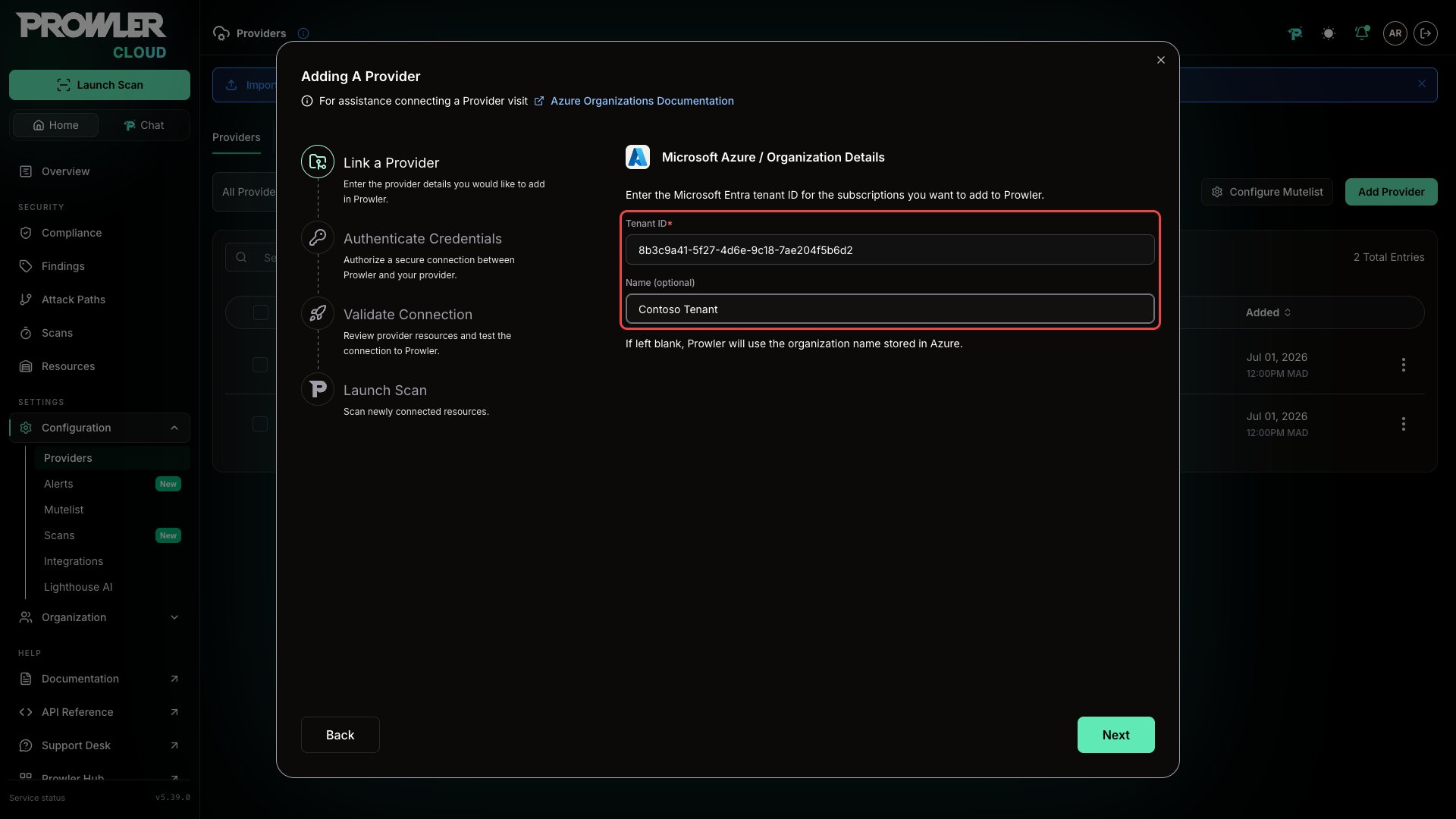
Enter Organization Details
- Tenant ID: the Microsoft Entra tenant ID (for example,
8b3c9a41-5f27-4d6e-9c18-7ae204f5b6d2). Values that are not valid UUIDs are rejected before submission. - Name (optional): a display name for the organization in Prowler. If left blank, Prowler uses the tenant ID.
Step 2: Authenticate With Azure
The Authentication Details step collects the service principal Prowler uses to read the Management Group hierarchy and, later, to scan each subscription:- Client ID: the application (client) ID of the service principal, a UUID.
- Client Secret: a client secret of that service principal.
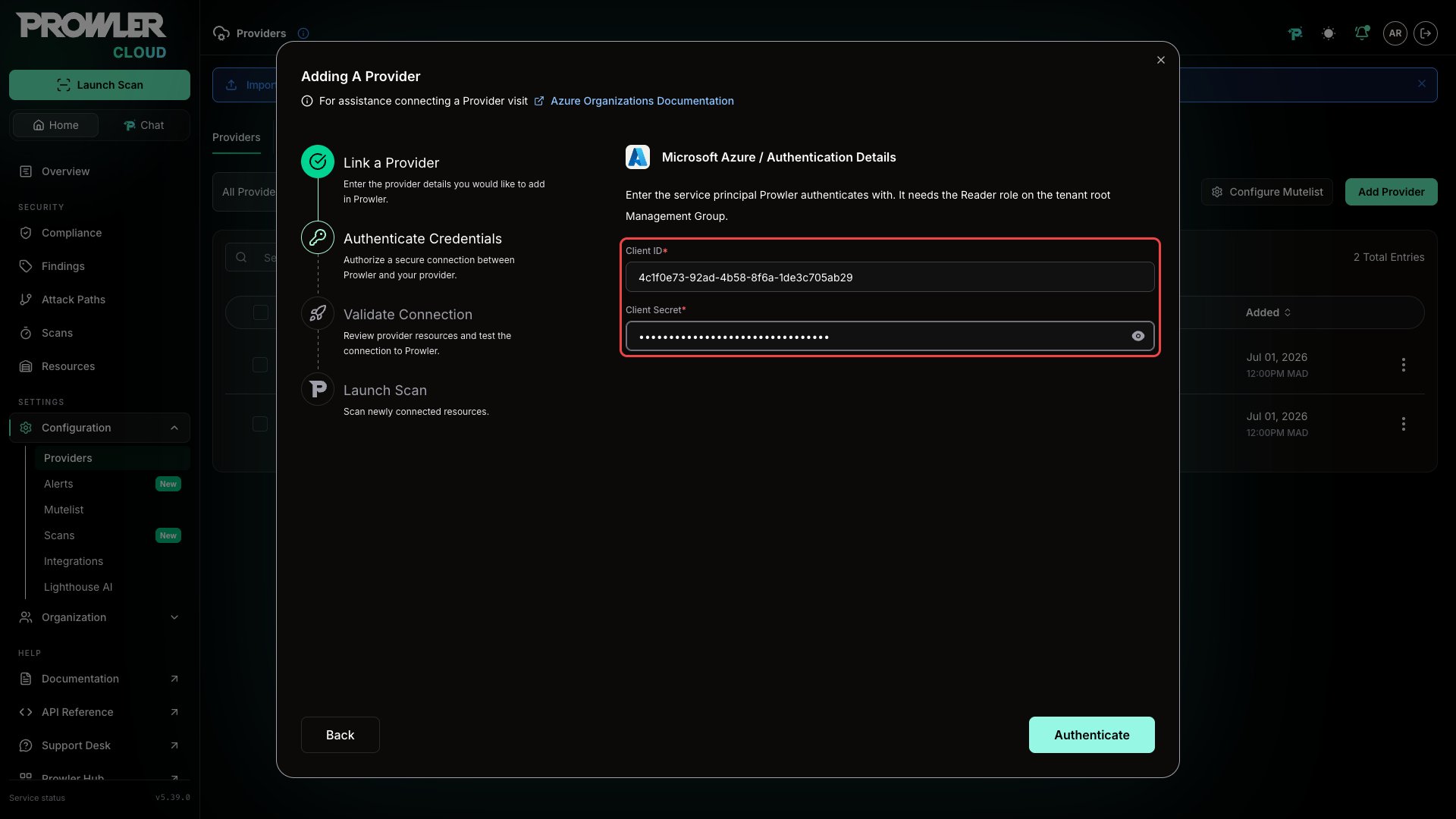
Authenticate and Discover
Click Authenticate. Prowler then:- Creates the organization and stores the credential securely.
- Triggers an asynchronous discovery that walks the Management Group hierarchy.
- Shows a “Gathering Azure Subscriptions…” spinner while it waits.
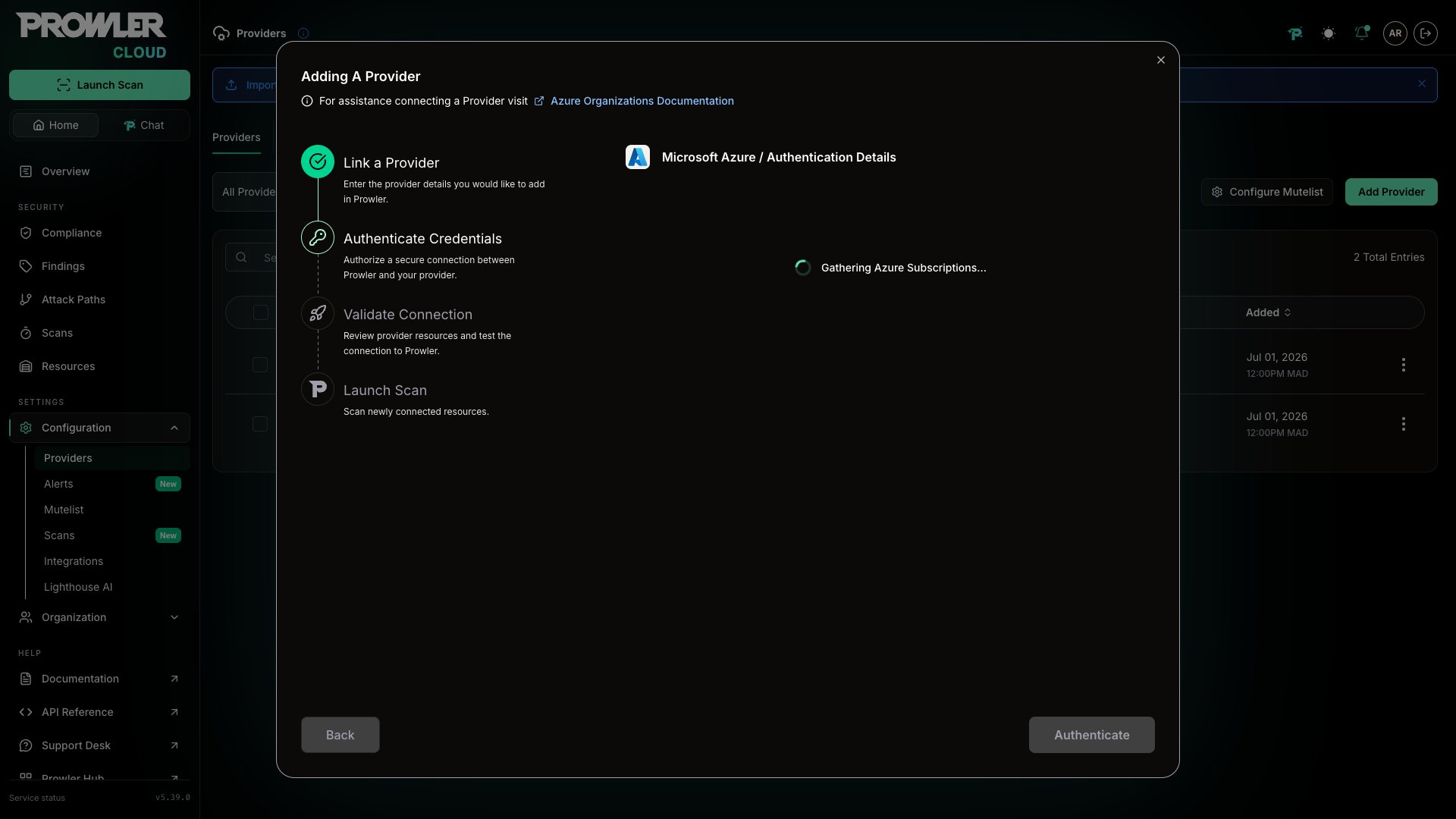
When Discovery Takes Too Long
Prowler waits up to 3 minutes for a result. Past that, the wizard stops waiting — but the discovery keeps running in Azure — and offers two actions:- Keep waiting — resume the same discovery. Nothing is re-read from Azure.
- Retry — start a fresh discovery, which reads the hierarchy again.
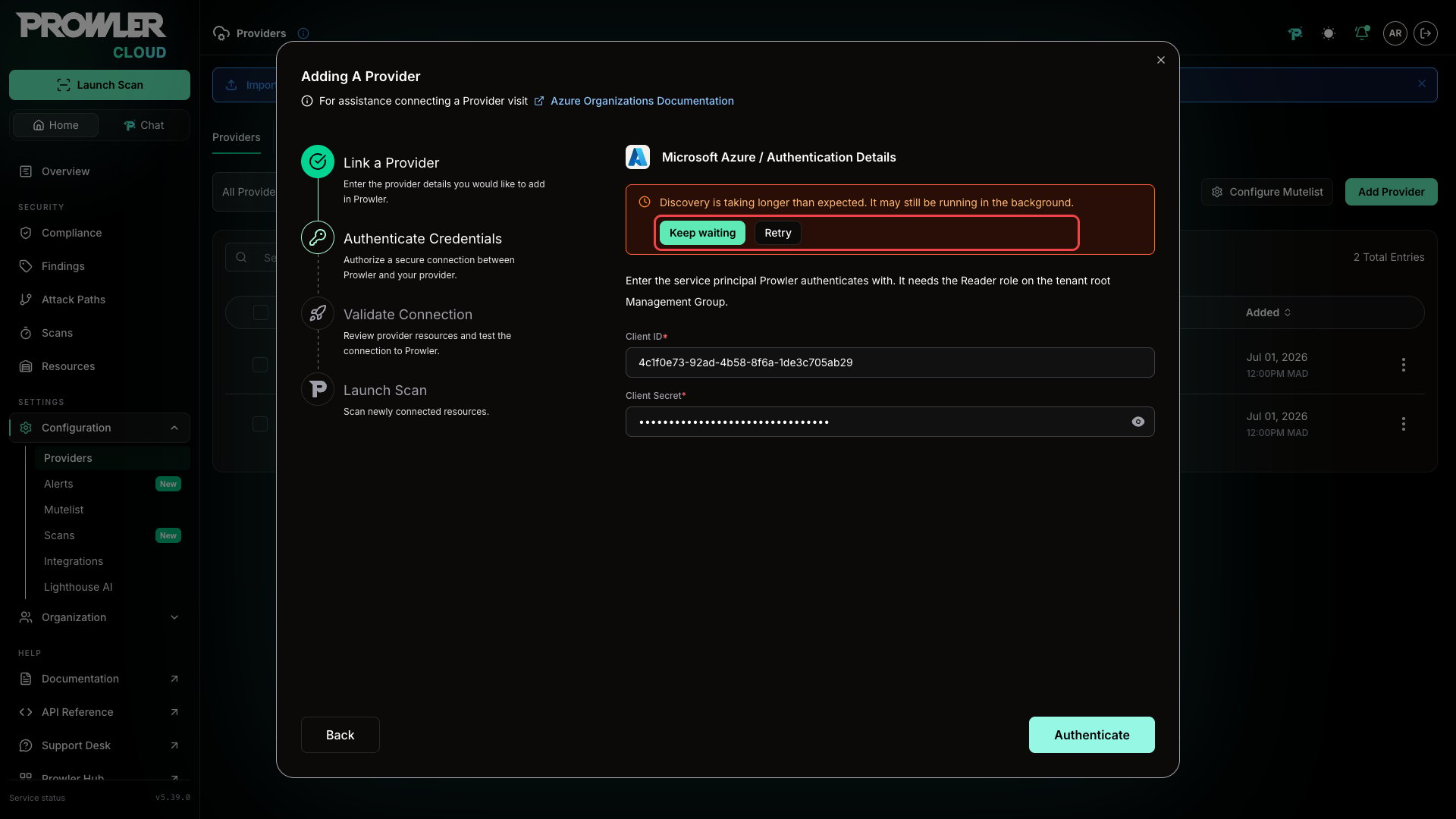
Step 3: Select Subscriptions to Scan
Understanding the Tree View
Once discovery completes, the wizard renders the tenant as a hierarchical tree: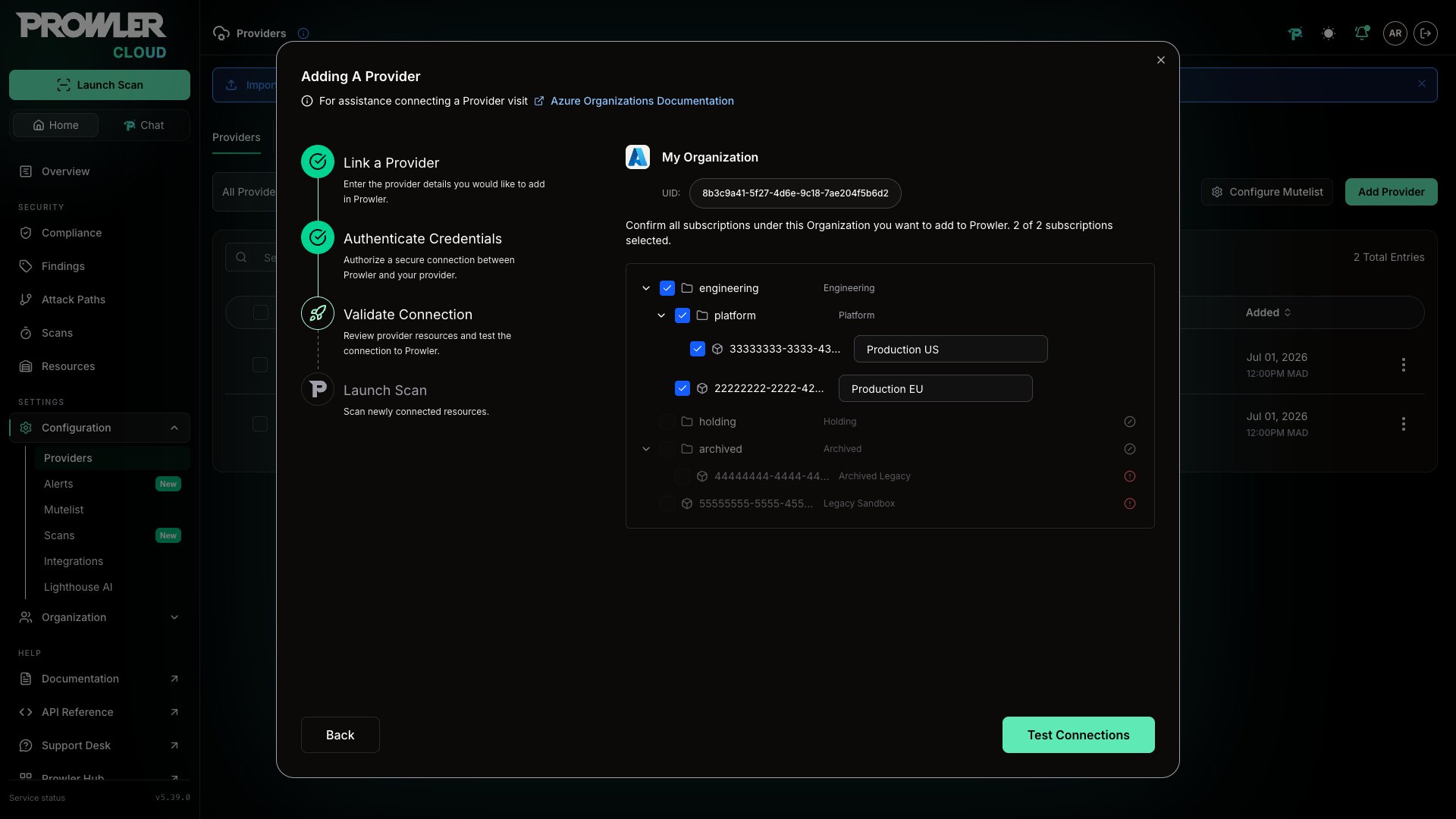
- Management Groups nest under the tenant root; subscriptions that sit directly under the tenant root appear at the top level. The tenant root itself is not shown as a row — the whole tree is its content.
- Each Management Group row shows its Management Group name, with the Azure display name beside it. Hover the name to read the full Azure Resource Manager (ARM) resource identifier.
- Selecting a Management Group selects every selectable subscription beneath it. A Management Group whose subscriptions are only partly selected renders in an indeterminate state.
- Individual overrides: deselect single subscriptions even when the parent Management Group is selected.
- The header tracks the selection as “X of Y subscriptions selected”.
- Management Group hierarchies are read up to six levels below the tenant root Management Group, which is Azure’s own platform limit. Deeper tenants report an error at discovery — see Troubleshooting.
Blocked Subscriptions
A subscription is shown grayed out and cannot be selected when Azure reports it as inactive, or when onboarding it would conflict with something Prowler already stores. Hover the subscription to see the reason: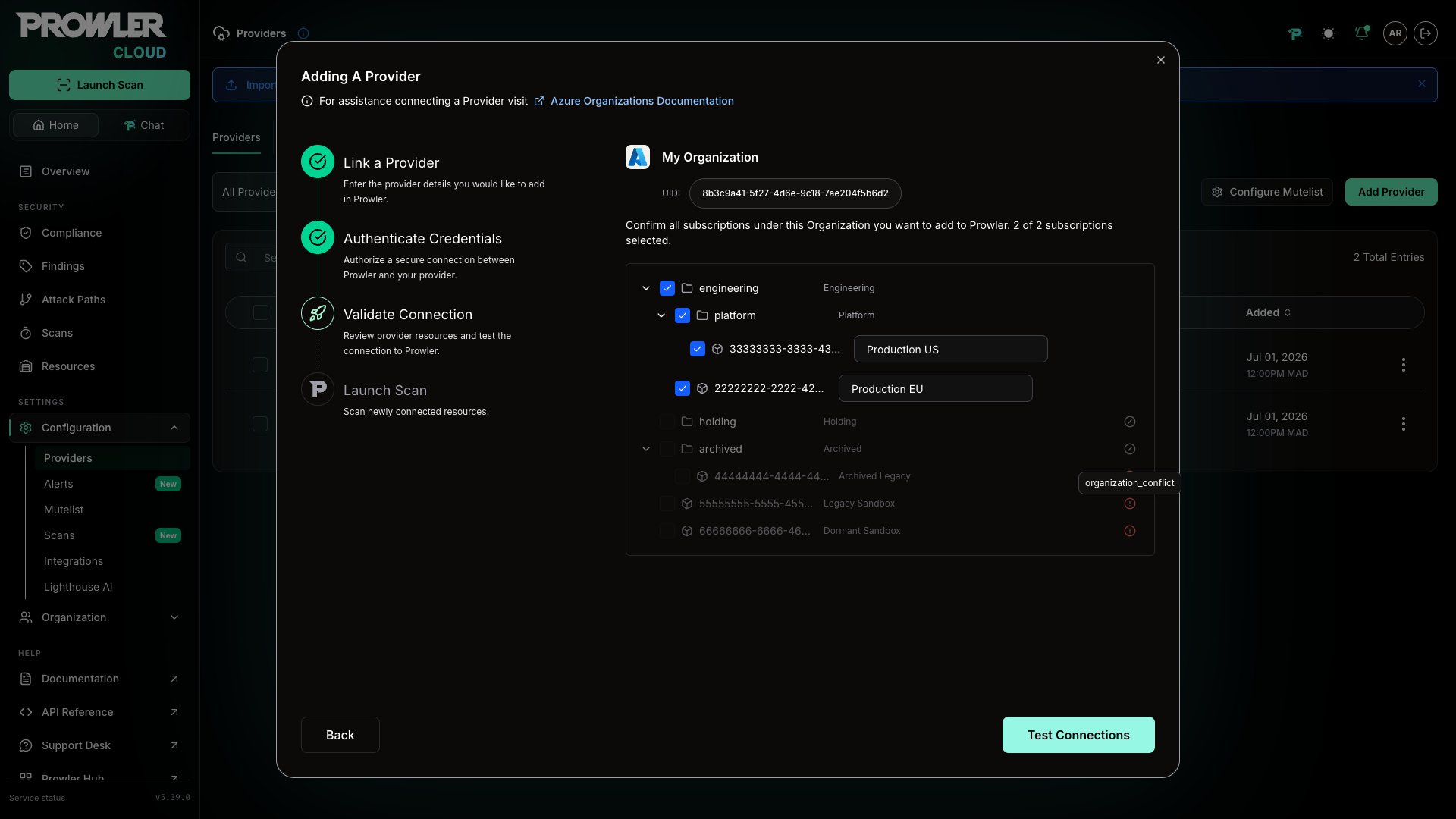
Management Groups With Nothing to Select
A Management Group that holds no subscriptions, or whose subscriptions are all blocked, is shown disabled with the note “No subscriptions available to select in this management group.” The Management Group still expands, so you can see the blocked subscriptions it holds and why they are blocked.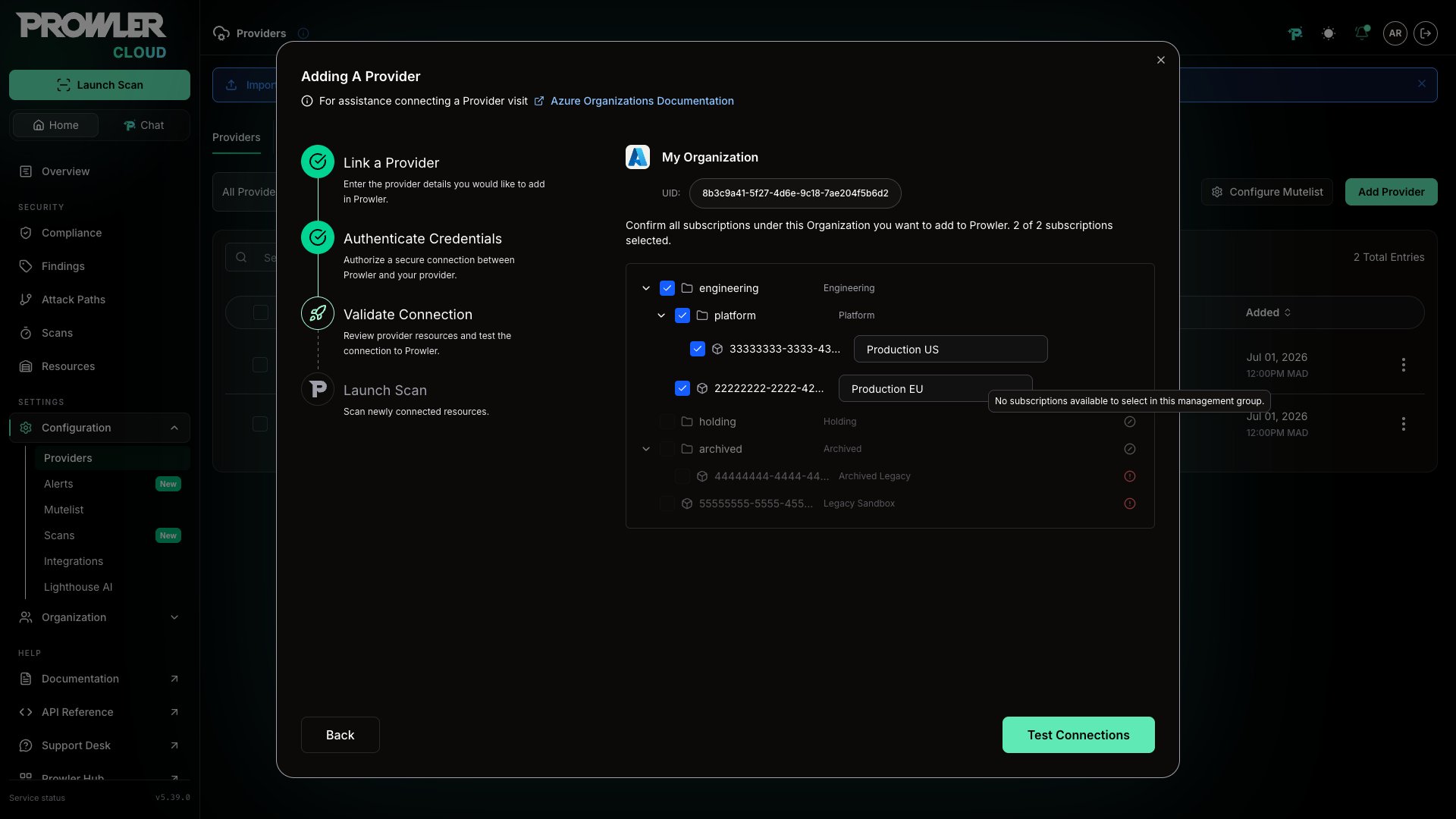
Custom Aliases
Each subscription row carries an editable name, prefilled with the subscription’s display name. The alias is used only inside Prowler — it does not rename anything in Azure. Management Group names are read-only: Prowler stores the display name from Azure.Subscriptions That Already Have Credentials
Applying your selection stores the organization credential on every selected subscription. When a selected subscription is already connected to Prowler with its own credential, that credential is overwritten — so the wizard asks first, naming the affected subscriptions: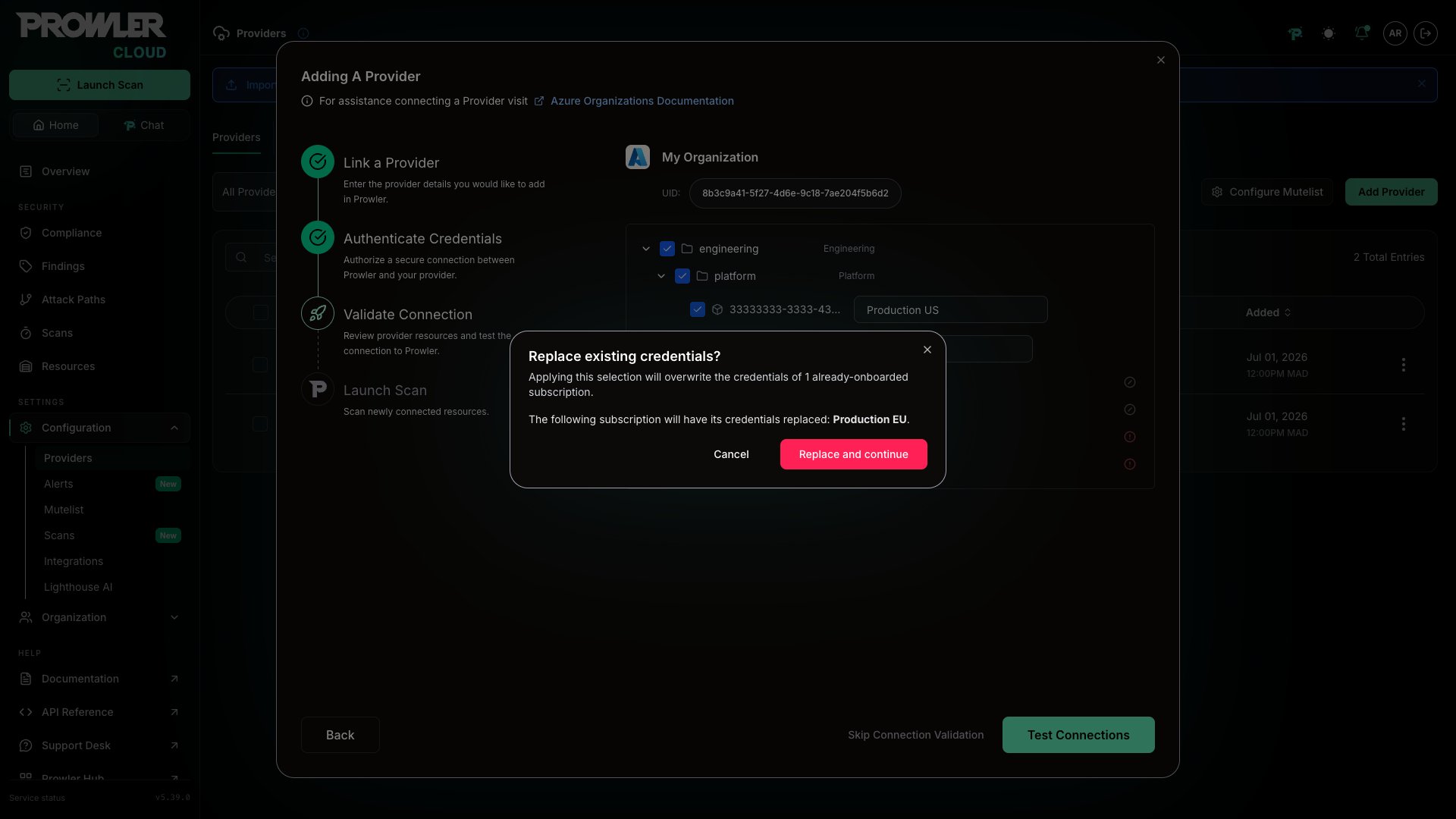
Your existing data is safe. A subscription already connected as an individual provider is linked to the organization, never duplicated: its historical scans and findings are preserved, and it does not count twice toward your subscription.
Step 4: Test Connections
Click Test Connections to verify that Prowler can authenticate against each selected subscription. Prowler creates one provider per subscription — identified by its Azure subscription ID — and then tests every connection.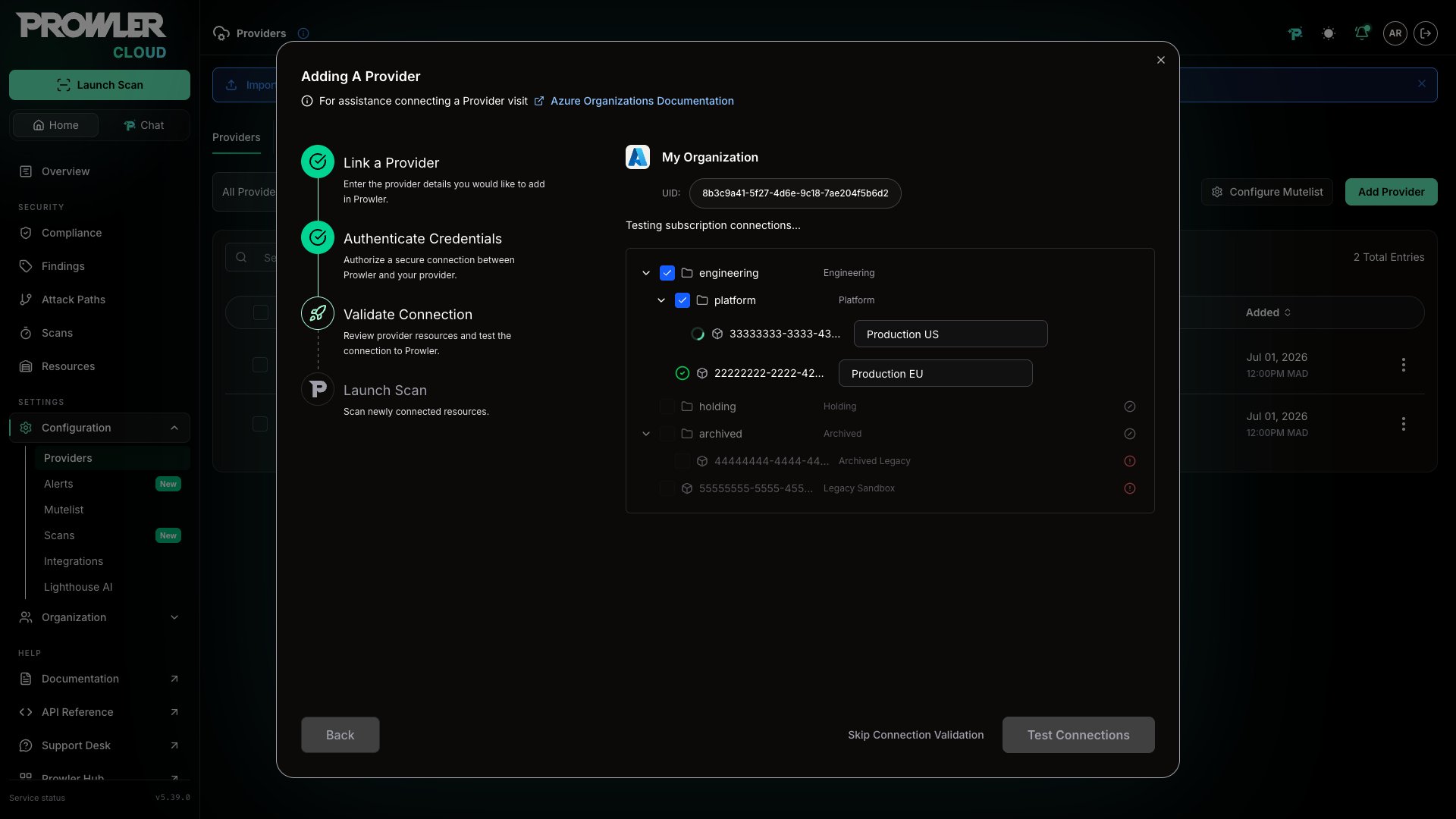
- Spinner — test in progress
- Green checkmark (✓) — connection successful
- Red icon (✗) — connection failed (hover to see the error)
When Some Tests Fail
An error banner appears: “There was a problem connecting to some subscriptions. Hover each subscription to check the error.” You have two options: a) Fix and retry:- Confirm the service principal holds Reader and ProwlerRole on the failing subscriptions, or on a Management Group above them.
- Confirm the Microsoft Graph permissions have been granted admin consent, as described in Azure Authentication in Prowler.
- Click Test Connections again — only the failed subscriptions are re-tested. Subscriptions that already passed are not tested again.
Step 5: Launch Scans
The Organizations wizard uses the same schedule controls described in Scan Scheduling. Click Save, Save and launch scan, or Launch scan, depending on the selected schedule option. A toast notification confirms whether the schedule was saved, scans were launched, or both, and links to the Scans page. Prowler then redirects to the Providers page. Scans launch only for subscriptions that passed connection testing.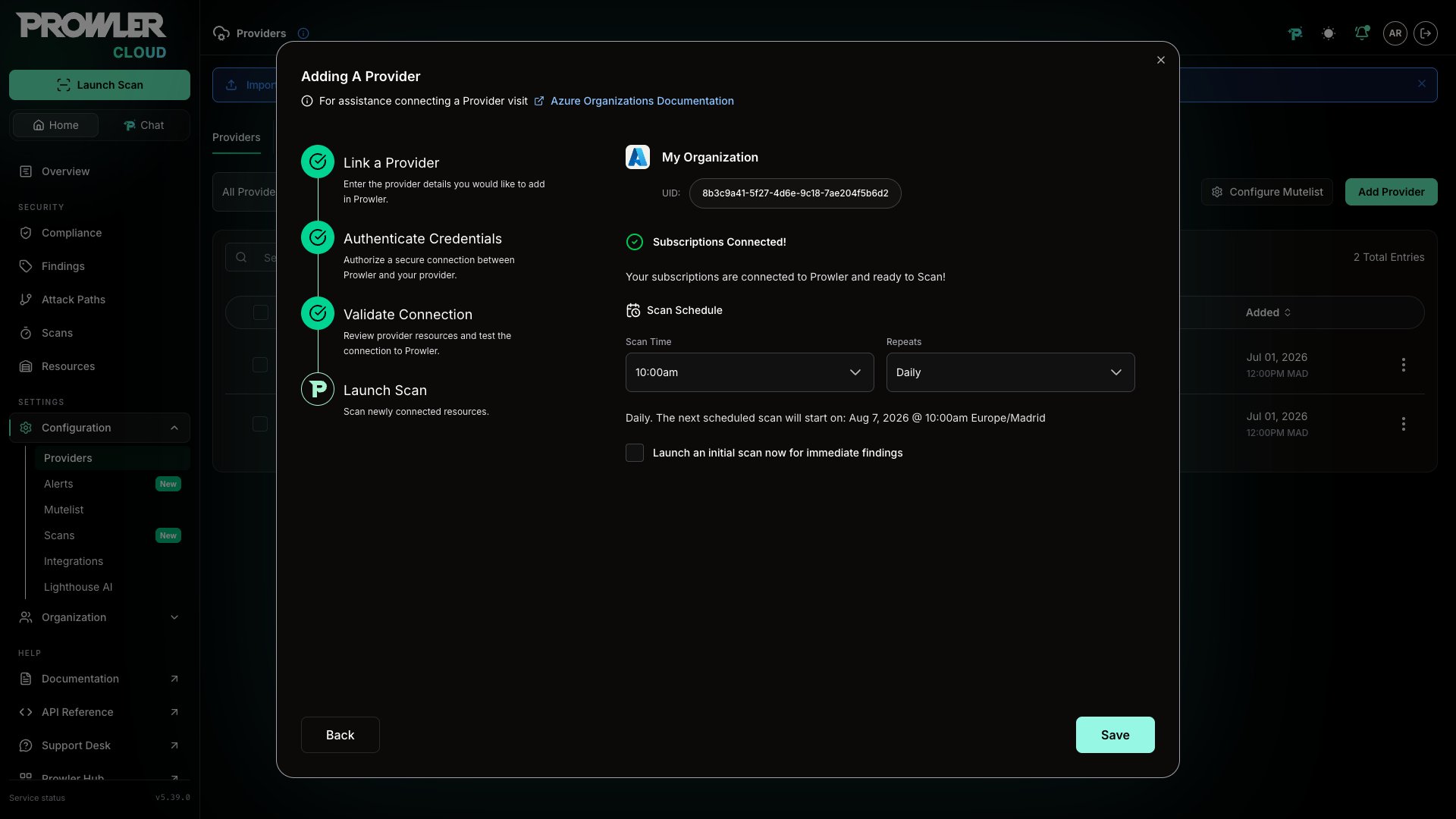
- Scans appear on the Scans page as they start and complete.
- Results populate the Overview and Findings pages.
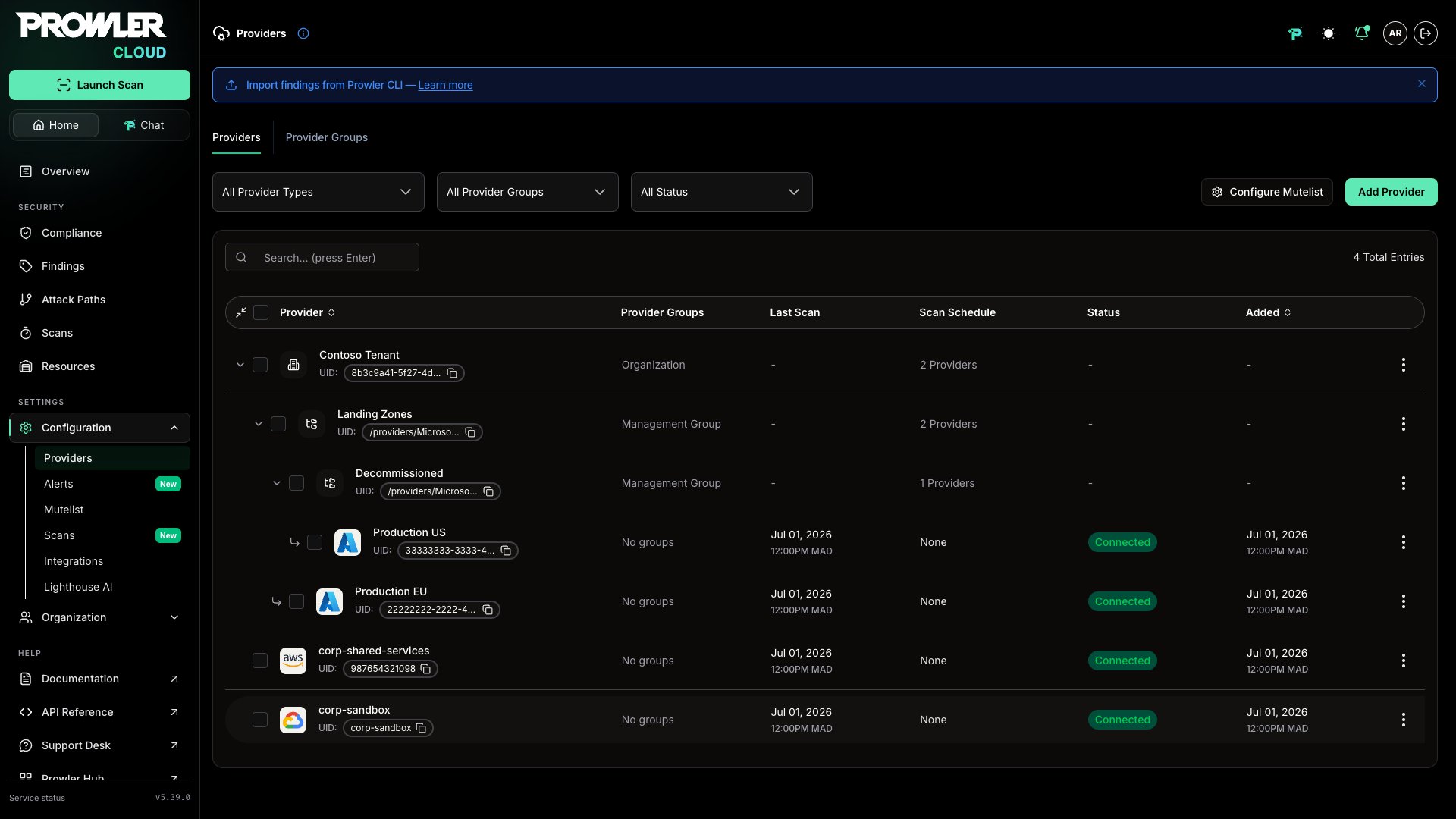
- On the Providers page, your subscriptions are grouped under the organization and, when they live in a Management Group, under that Management Group.
Manage Your Organization After Onboarding
Open the row actions menu on the organization row on the Providers page.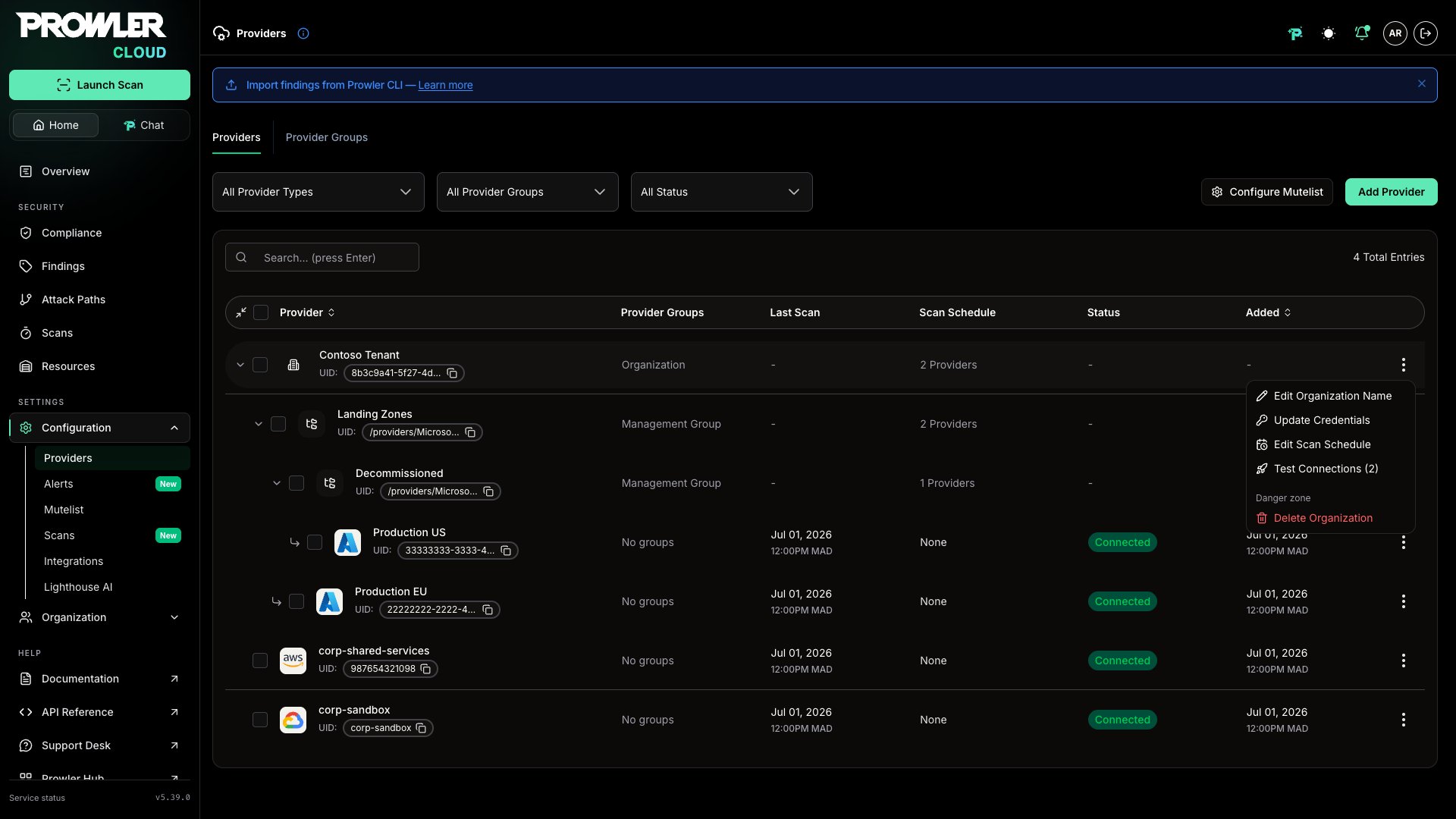
Onboard Subscriptions Created Later
Subscriptions added to the tenant after onboarding are not picked up automatically. Run the wizard again with the same tenant ID: discovery returns the current hierarchy, already-connected subscriptions come back preselected, and the new ones are ready to select.Update Organization Credentials
Choosing Update Credentials re-enters the Authentication Details step. Because the organization already holds a credential, Prowler warns before overwriting it and names how many providers re-authenticate with the new one: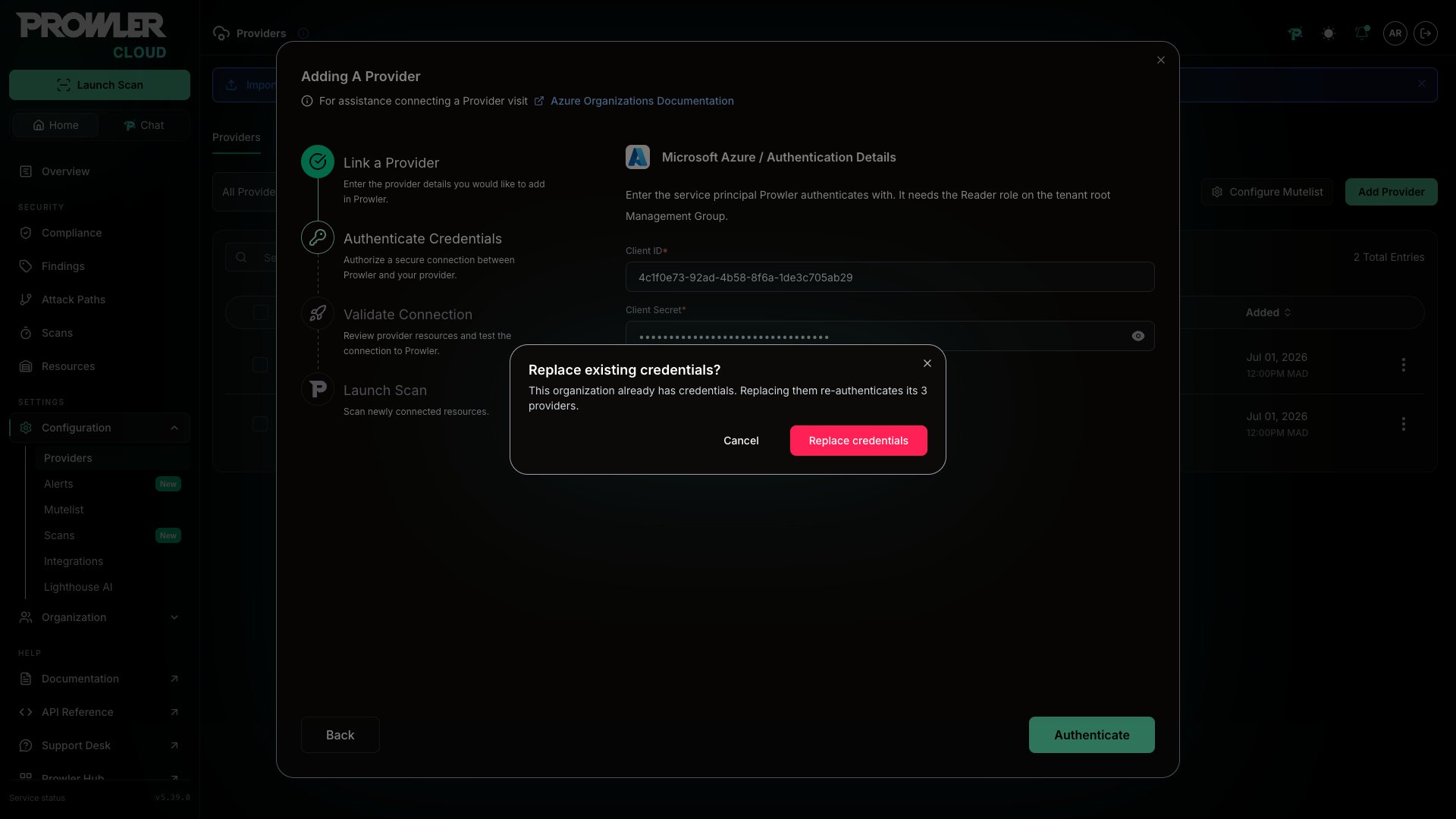
Delete an Organization or Management Group
Deleting an organization or a Management Group cascades to every provider grouped under it, along with their scans and findings. Both dialogs state how many providers are affected before you confirm.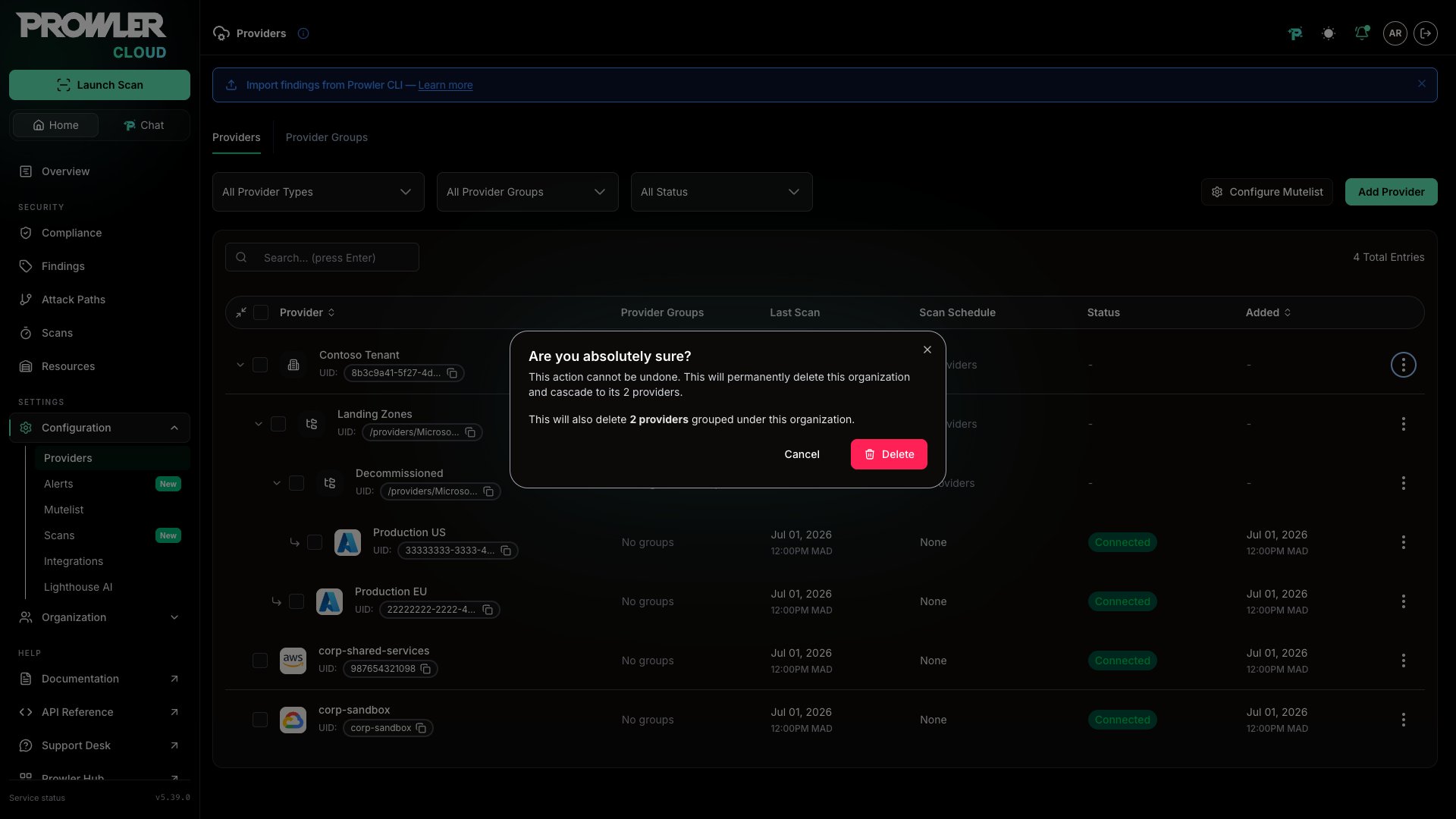
Deleting an organization permanently deletes every subscription provider grouped under it, including their historical scans and findings. This action cannot be undone.
When Grouping Is Unavailable
If Prowler cannot read the hierarchy while loading the Providers page, a notice reads “Organization grouping is incomplete. Some providers may appear ungrouped.” Your providers are still listed, just flat. Reload the page to try again.Billing Impact
Each Azure subscription you connect through the Organizations wizard counts as one provider in your Prowler Cloud subscription.- Already-connected subscriptions: linking an existing provider to the organization does not add billing. The existing provider is reused.
- Large tenants: connecting a 500-subscription tenant results in up to 500 providers on your subscription. Review your plan limits before proceeding.
- Deleted providers: a subscription you later remove no longer counts toward your subscription.
Troubleshooting
Those Service Principal Credentials Were Rejected
“Those service principal credentials were rejected. Check the client ID and client secret, then try again.” Azure refused the sign-in. Confirm the client ID belongs to the service principal you granted access to, and that the client secret is current — secrets expire, and a rotated one invalidates the old value immediately.The Service Principal Cannot Read the Complete Management Group Hierarchy
“The service principal cannot read the complete Management Group hierarchy. Grant it the Reader role at the Management Group level, then try again.” The credential authenticated but lacks read access to part of the hierarchy. Grant Reader at the tenant root Management Group, as described in Grant Read Access at the Tenant Root Management Group, and confirm the assignment landed on the Management Group and not on a single subscription:Azure Returned an Incomplete Management Group Hierarchy
“Azure returned an incomplete Management Group hierarchy. This usually clears on a retry; if it does not, check that the service principal can read every Management Group in the tenant.” Azure answered, but the hierarchy it returned was missing Management Groups that Prowler expected to find. This is usually a transient inconsistency in Azure Resource Manager, so click Retry discovery first. If it repeats, treat it as a permissions problem. Unlike the error above, Azure did not refuse the read — a partial grant can surface as missing data rather than as an outright denial. Confirm that the Reader assignment sits on the tenant root Management Group and not on individual Management Groups beneath it, using the command in The Service Principal Cannot Read the Complete Management Group Hierarchy.The Tenant Root Management Group Could Not Be Found
“The tenant root Management Group could not be found. Check the tenant ID, and that the service principal has been granted access at the tenant root.” Prowler derives the tenant root Management Group from the tenant ID you entered, and could not read it. Either the tenant ID is wrong, or the service principal cannot see the root. Confirm the tenant ID and list what the credential can reach:Those Credentials Belong to a Different Microsoft Entra Tenant
“Those credentials belong to a different Microsoft Entra tenant. Use a service principal from the tenant you entered.” The service principal is registered in another tenant. Register the application in the tenant being onboarded, or correct the tenant ID in the first step of the wizard.Azure Did Not Respond
“Azure did not respond while reading the Management Group hierarchy. Nothing is wrong with your credentials — try again in a few minutes.” A transient Azure Resource Manager error. Click Retry discovery.Azure Rate Limited the Hierarchy Read
“Azure rate limited the hierarchy read. Nothing is wrong with your credentials — try again in a few minutes.” Azure Resource Manager throttled Prowler’s requests while it walked the hierarchy. Large tenants and back-to-back discoveries are the common causes. Wait a few minutes, then click Retry discovery.The Hierarchy Is Too Deep
“This tenant’s Management Group hierarchy is deeper than Prowler can read. Contact support so we can help you onboard it.” The tenant nests Management Groups deeper than Prowler reads in one pass. Contact Prowler Support.Authentication Failed
“Authentication failed. Please verify the service principal permissions or credentials, then try again.” The generic authentication failure, shown when Azure reports no more specific reason. Confirm that the service principal still exists, that its client secret has not expired, and that the Reader role assignment at the tenant root Management Group is still in place.Azure Rejected the Hierarchy Read
“Azure rejected the hierarchy read. Try again, and contact support if it keeps failing.” Azure refused the request for a reason Prowler could not narrow down to credentials, permissions, or throttling. Click Retry discovery, and contact Prowler Support if the failure repeats. This message names Azure as the source of the failure; the one below is shown when the failure cannot be attributed to Azure at all.Discovery Could Not Be Completed
“Discovery could not be completed. Try again, and contact support if it keeps failing.” Discovery failed for a reason Prowler cannot attribute to the credential or to Azure. Click Retry discovery, and contact Prowler Support if the failure repeats.Discovery Never Finishes
The wizard stops waiting after 3 minutes, but the discovery keeps running in Azure. Click Keep waiting to resume the same discovery rather than Retry, which starts over and re-reads the whole hierarchy.Key Concepts
How Subscriptions Map to Prowler Providers
Each selected subscription becomes one Prowler provider:
Management Groups that hold selected subscriptions become grouping rows on the Providers page. You select subscriptions only — Prowler derives the Management Group ancestors itself.
Organization Credential vs Subscription Credential
One credential, stored twice: on the organization, where discovery reads it, and on each subscription provider, where scans read it. That is why replacing the organization credential re-authenticates every subscription under it, and why the wizard asks before overwriting a subscription’s own credential.What’s Next
Prowler Cloud
Full guide to using Prowler Cloud features.
Azure Subscriptions (CLI)
CLI-based scanning of specific Azure subscriptions.
Azure Authentication
Credential types and the permissions Prowler needs in Azure.
Bulk Provider Provisioning
Script-based bulk provisioning for advanced automation.